Custom Anki Template for Learning Vocabulary
I always try to improve my English, and increasing vocabulary is an important part of that. I use Anki to create flashcards with the words I want to learn and review the cards daily.
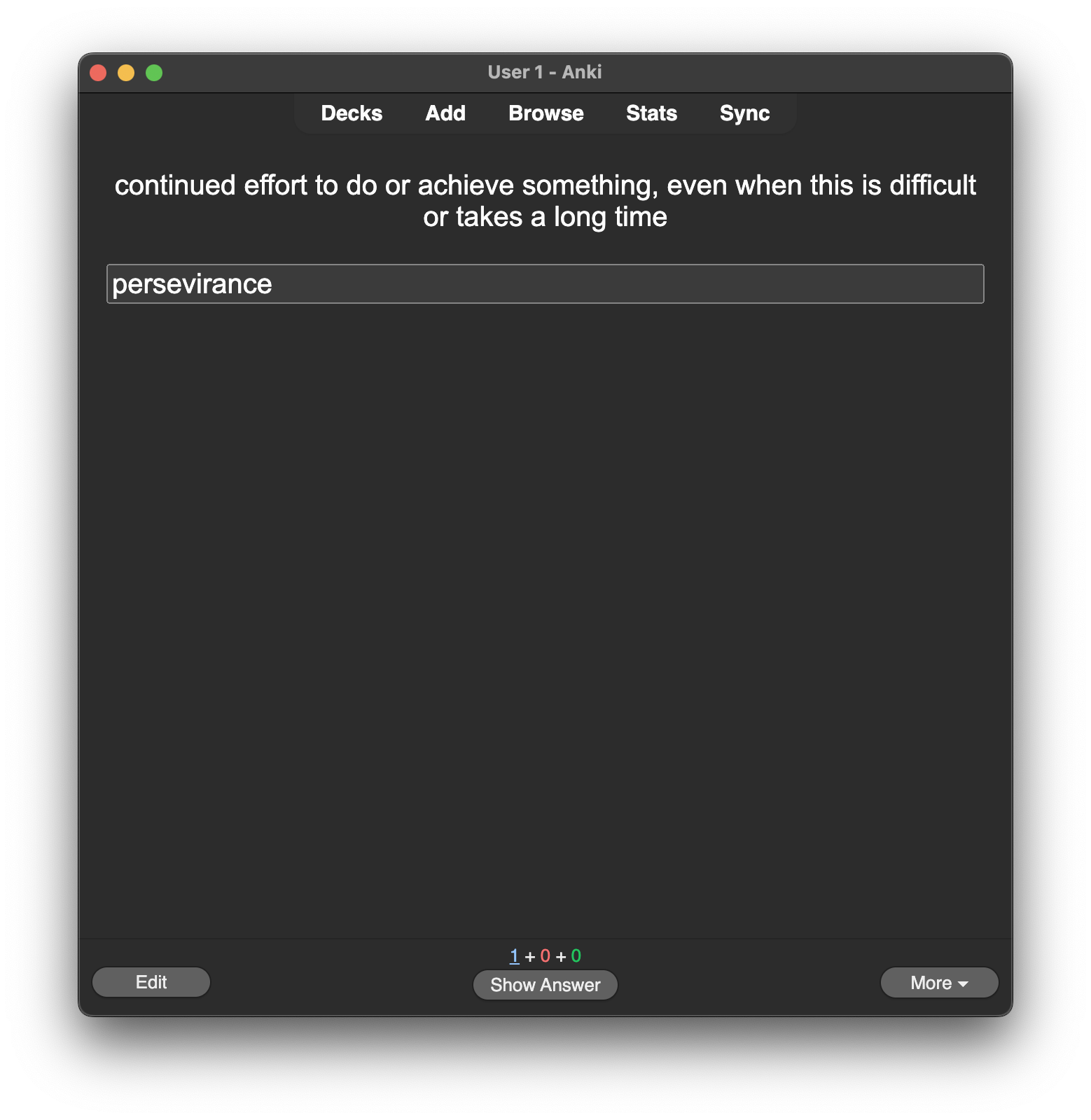
In the simplest terms, Anki works like this: you have a flashcard where, on the front side, there’s a question, and on the back side, there’s an answer. First, you see the front side, answer the question by saying it out loud or typing it, and then you flip to the back side to see the correct answer. You then evaluate your answer by pressing one of these buttons: ‘Again’ if your answer was wrong, or ‘Hard’, ‘Good’, or ‘Easy’ if your answer was correct but with varying levels of difficulty. The app will show you the harder cards more often and the easier ones less frequently. This method, called spaced repetition, helps you remember things faster and more effectively. To learn more about Anki, check their website: apps.ankiweb.net.
I create cards for three types of words:
- New words: words I encounter in different content whose meanings I don’t know. I want to learn these from scratch — including meaning, spelling, and pronunciation.
- Familiar words with spelling mistakes: words whose meanings I know but where I often make spelling mistakes.
- Familiar words with pronunciation mistakes: words whose meanings and spellings I know but where my pronunciation needs improvement.
I came up with a simple but effective card template that meets my needs and can be set up in a couple of minutes. On the front side of the card, I include the word’s definition and an input field for my answer. On the back side, I include the correct answer, my answer’s spelling check, an image of the word, its IPA transcription, an example sentence, and audio of the word’s pronunciation.
I don’t share my deck because the words I’m learning might not be useful for others. However, I’ll share how to set up this card template and start building your own deck.
How to Set Up a Custom Card Template
Open Anki and go to Tools > Manage Note Types (or press Shift + Command + N).
Click on Add to create a new note type. Choose Basic (Add: Basic) as a template and name it something like “Vocabulary.”
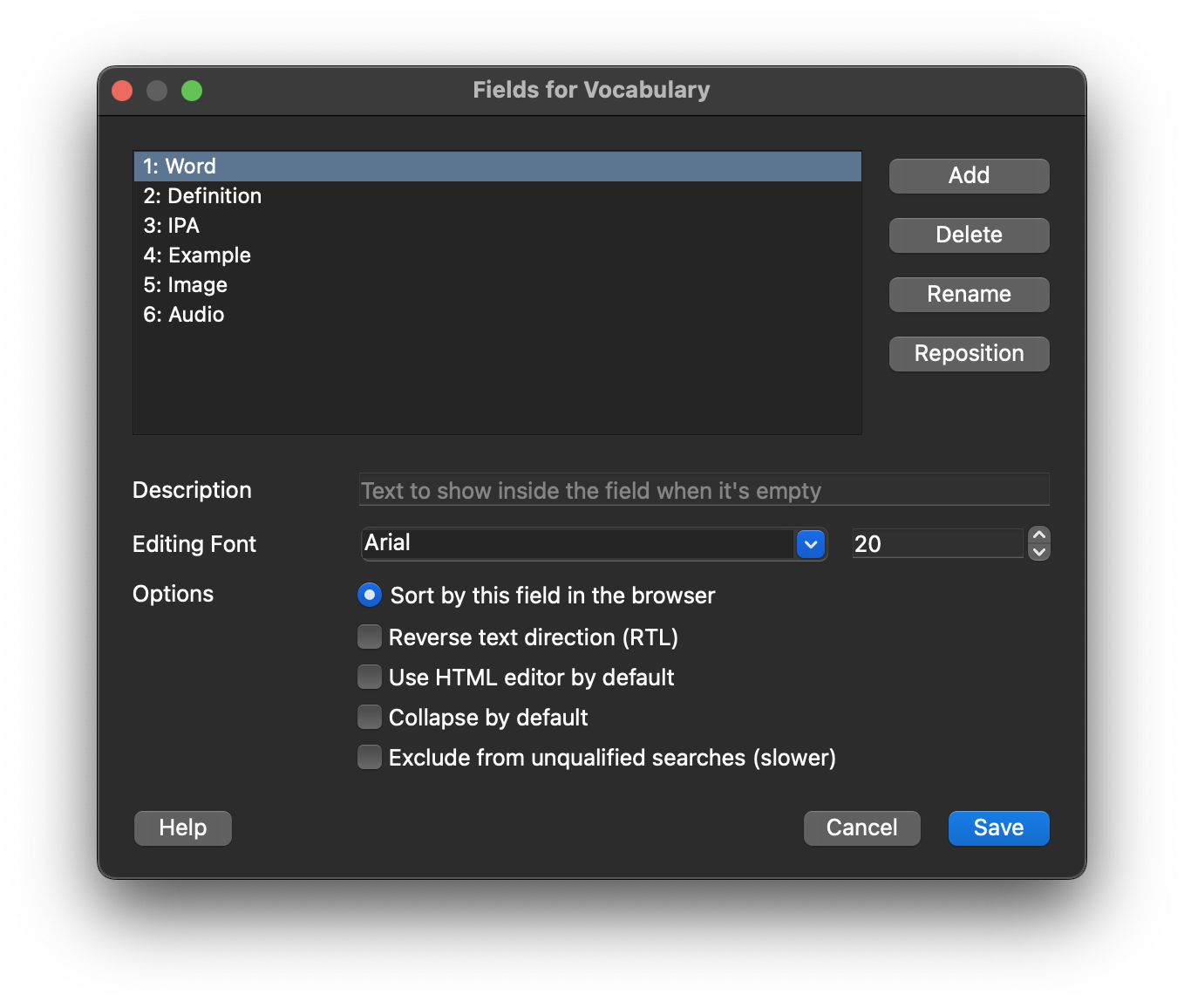
After creating the note type, select it and click Fields.
Add new fields:
- Word
- Definition
- Image
- Example
- IPA
- Audio
Remove the default existing fields, “Front” and “Back,” and click Save.
- Set up the Front side template by clicking the Cards button. Add the following code to the Front Template:
{{Definition}}
<br>
<br>
{{type:Word}}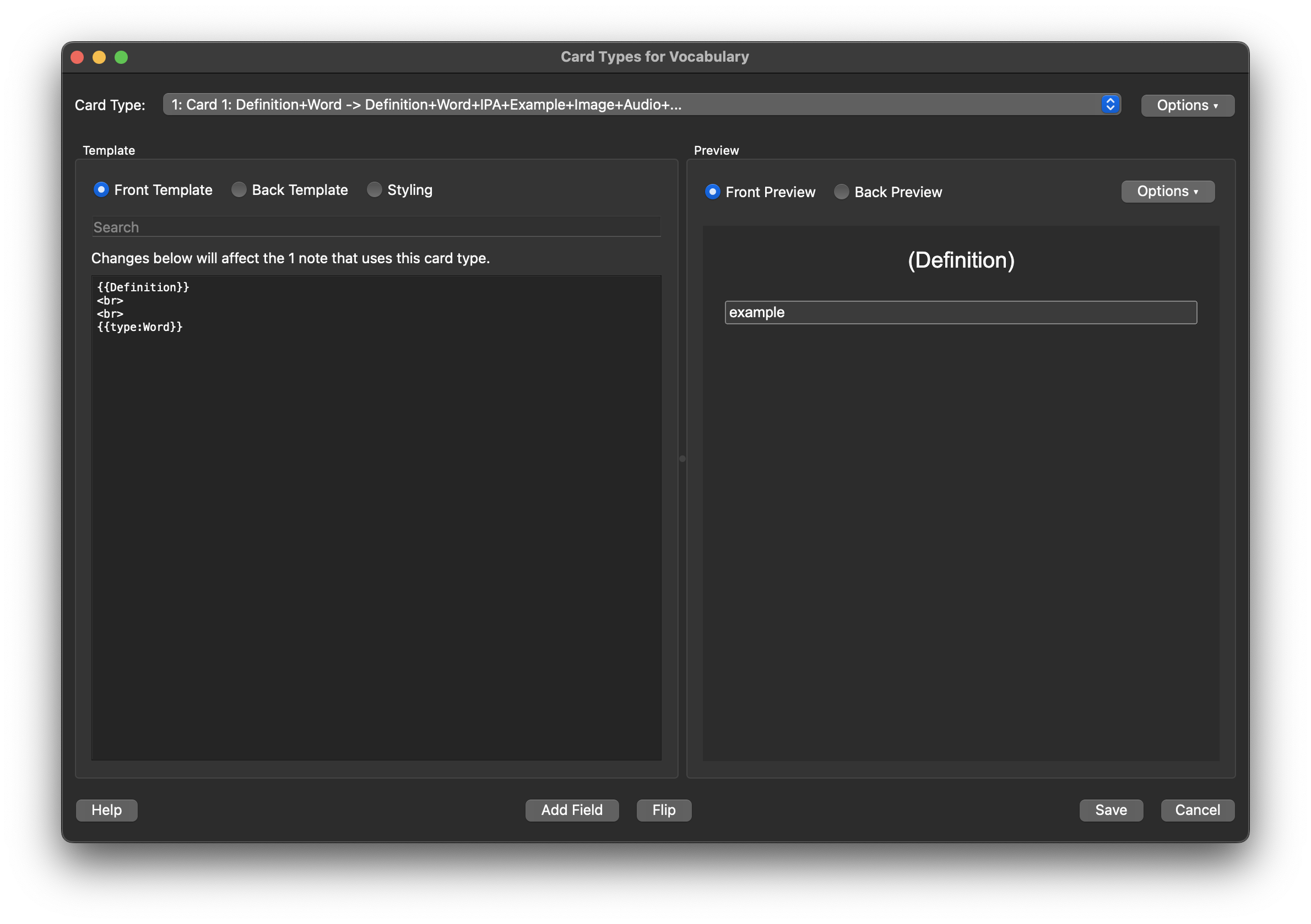
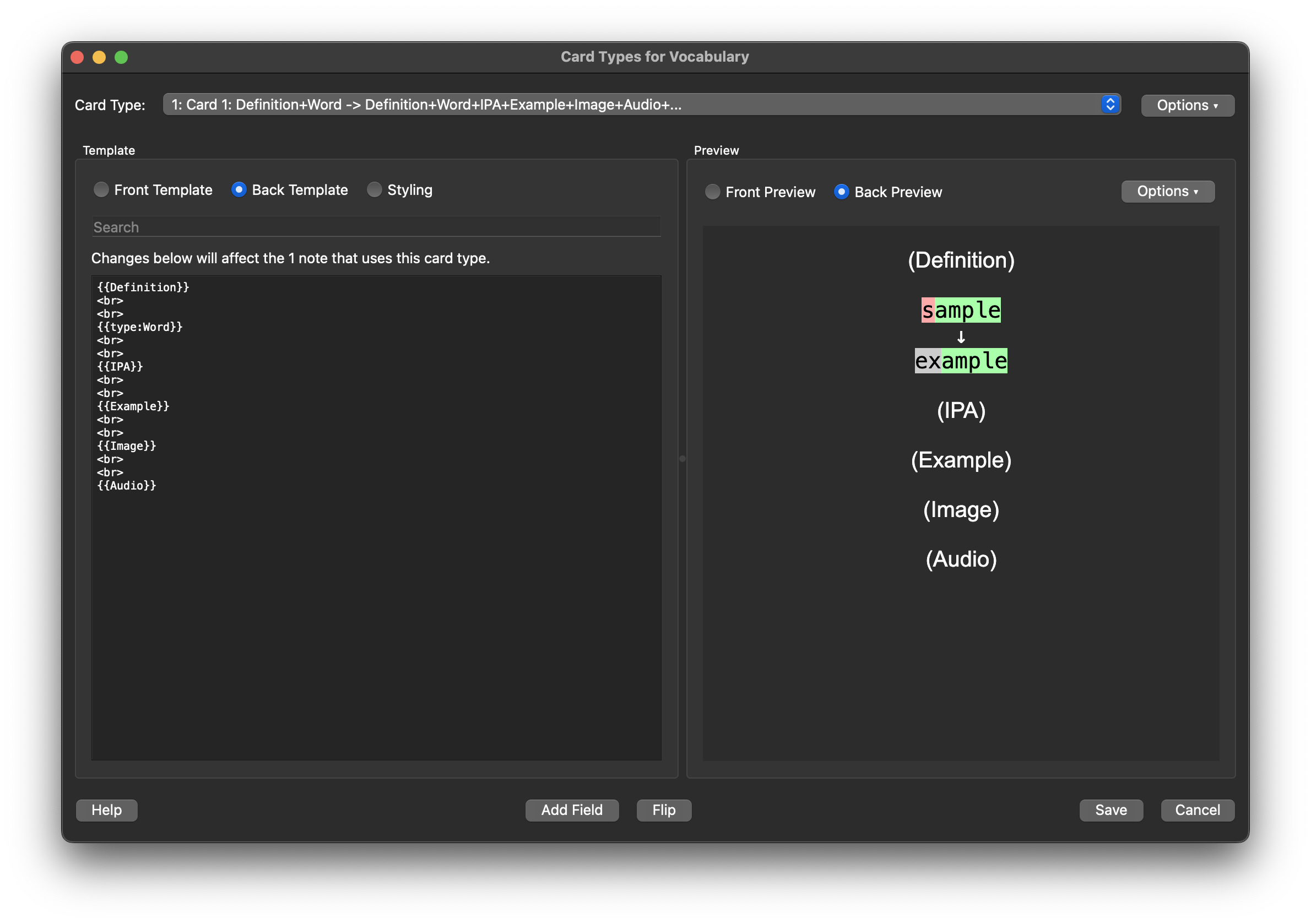
- Set up the Back side template by adding the following code to the Back Template:
{{Definition}}
<br>
<br>
{{type:Word}}
<br>
<br>
{{IPA}}
<br>
<br>
{{Example}}
<br>
<br>
{{Image}}
<br>
<br>
{{Audio}}
Click Save.
Creating Cards
On Anki’s main screen, press the Create Deck button and name it with the language you’re learning, e.g., “English Vocabulary.”
- Press the Add button to create a card:
- Check that your card type and deck are correct.
Input all the data for the word you want to learn. You can drag audio and images into the fields.
- To download audio, use Forvo.
- To download images, use Google search and save an image preview from the results page (a full-size image is unnecessary). Choose an image that makes the most sense to you and creates an association with the word; this helps you remember it faster.
After filling in all the fields, press the Add button at the bottom of the window.
- To review your card, select your deck on the Anki main screen and press the Study Now button.
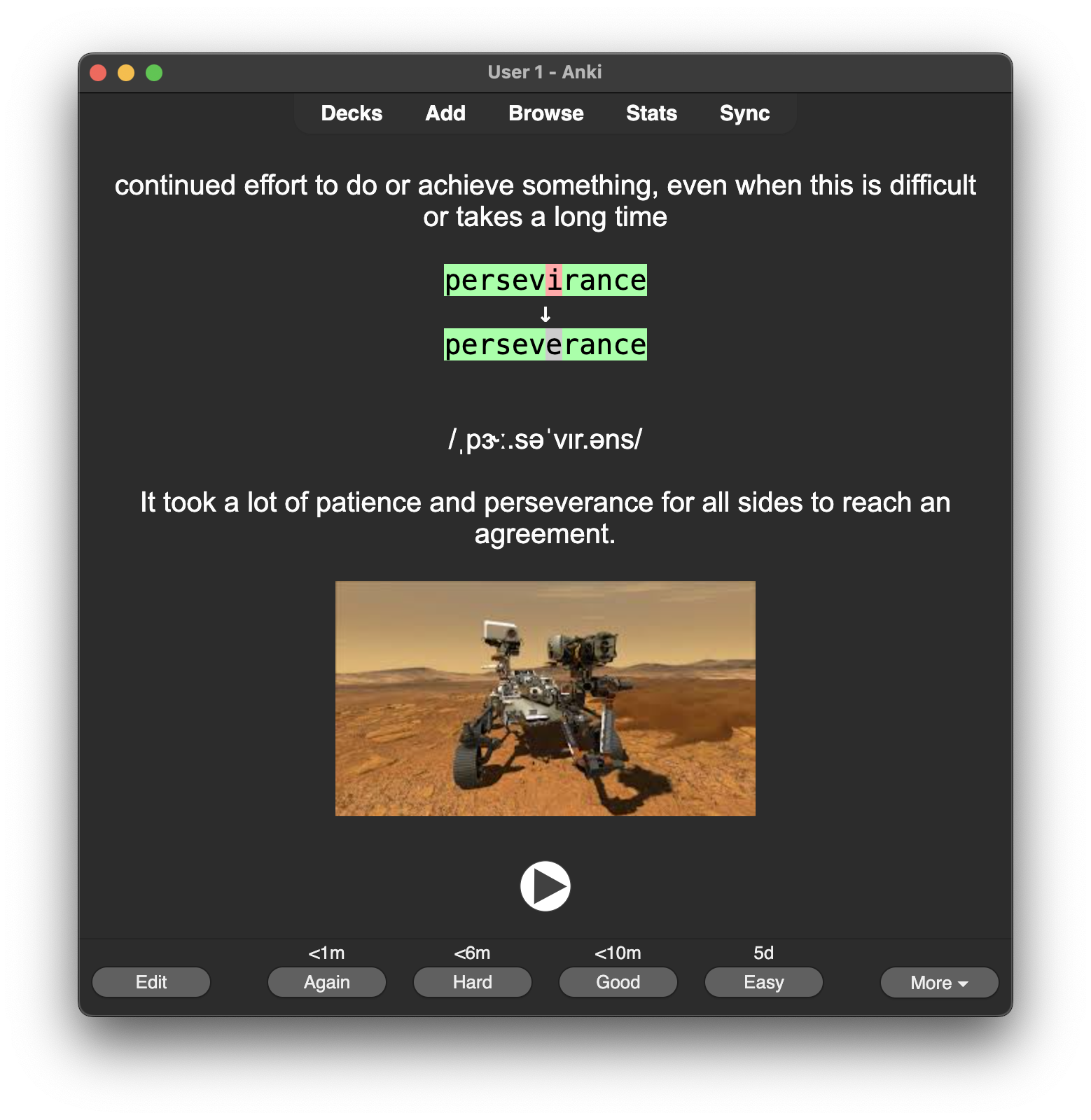
Resources for Card Information
- Images: Google Images or DuckDuckGo
- Audio of pronunciation: Forvo
- Definitions, IPA, and example sentences: Cambridge Dictionary or ChatGPT (it’s convenient for this too).
I find Anki is a very useful tool for learning vocabulary, and I hope that this guide helps you to set up your vocabulary deck and improve your learning process.